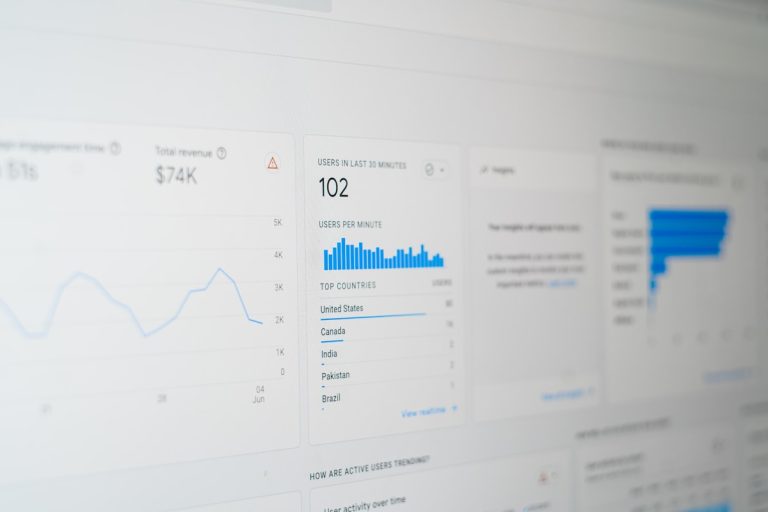
Why Your GA4 Dashboard Shows Zero and What It Really Means
You log into Google Analytics 4, grab a fresh mug of tea, and navigate straight to your monetisation reports. Your store made twenty sales yesterday, yet GA4 displays a flat, cold zero. No sales. No pound signs. Nothing. It feels like throwing money down a drain while your analytics dashboard shrugs back at you. When your digital storefront is firing orders but your analytics platform refuses to log them, you cannot calculate cost per acquisition, you cannot scale your winning ad sets, and you cannot tell if your organic search strategy is actually delivering cold, hard cash.
Reliable revenue tracking is the absolute bedrock of modern commercial decision-making. Without it, you are flying blind through heavy fog. Setting up manual tags, wrestling with Google Tag Manager triggers, and fixing obscure parameter errors drains dozens of hours that small marketing teams simply do not have. This is why forward-thinking teams choose AI CMO: Unified AI Marketing Automation for Digital Growth to bridge the gap between web traffic, automated campaign operations, and revenue attribution without relying on bloated agency retainers.
The Fourteen Culprits Breaking Your GA4 Revenue
Fixing broken e-commerce analytics requires knowing where the plumbing typically springs a leak. If you have spent hours digging through documentation, here are the most frequent reasons your purchase data never makes it to the final dashboard.
1. Missing Value or Currency Parameters
The standard purchase event in GA4 is notoriously picky. If you send the transaction identifier and the transaction value but omit the currency parameter, GA4 drops the financial data entirely. You cannot assume Google knows you trade in British Pounds just because your property settings default to GBP. Every single purchase event must carry transaction_id, value, and currency.
2. Broken Item Arrays
Do you want to see which specific products sell best? You need the items array populated correctly. Inside this array, each product needs a price, a quantity, an item_id, and an item_name. If your developer sends the price and product name but forgets the quantity parameter, the system cannot calculate your item revenue metric.
3. Case Sensitivity and Parameter Naming
Traditional Universal Analytics was somewhat forgiving with naming conventions. GA4 is ruthless. If your checkout code sends order_id instead of transaction_id, the platform ignores it. If you send total_price instead of value, your reports stay completely blank. Stick precisely to the documentation.
4. Poor Formatting and String Values
Passing financial data requires numbers, not text strings wrapped in quotation marks. If your store outputs a total as a string with currency symbols, like £49.99, or includes commas for thousands, GA4 fails to parse it. Send clean floats or integers such as 49.99.
5. Invalid Currency Codes
Currency codes must match the international ISO 3-letter format. Sending GBP, EUR, or USD works seamlessly. Sending £ or $ will break the reporting pipeline on the spot.
6. Using the Wrong Event Name
In GA4, the primary conversion event must be named purchase in all lower-case letters. Naming the event order_complete, transaction, or checkout_success means GA4 records it merely as a custom engagement event. It will not populate the standard e-commerce monetisation reports.
7. Secret Account Data Restrictions
Sometimes your code is immaculate, but your user profile has viewing restrictions applied. If an administrator adds you to a Google Marketing Platform user group with cost and revenue restrictions checked, you will see events, sessions, and pageviews, but every monetary column displays zero. If your setup looks technically sound, check property access management with your account administrator.
8. The 24 to 48-Hour Processing Delay
We live in a world of instant gratification, but standard GA4 reporting is slow. While events pop up inside the Realtime view and DebugView right away, standard e-commerce reports frequently experience a 24 to 48-hour processing lag. If you configured tracking this morning, step away from the screen and review it tomorrow.
9. The Trigger Never Actually Fires
It sounds painfully obvious, but check whether the purchase tag even executes on the confirmation screen. If a customer pays via an off-site payment gateway like PayPal or an external card provider, and they close the tab before redirecting back to your order success screen, your client-side tracking tag never runs.
10. Corrupted Data Layer Syntax
If you use Google Tag Manager, your developers must format the data layer correctly. The items key must be an array of objects enclosed in square brackets. If an engineer structures items as an isolated object enclosed in curly brackets, the entire payload breaks silently.
11. Aggressive Adblockers and Privacy Tools
Modern web browsers, DNS firewalls, and extensions such as uBlock Origin or Ghostery block the standard Google Analytics tracking scripts outright. If a notable portion of your target demographic is tech-savvy, you can lose 15% to 30% of your raw transaction logs before the data ever leaves the visitor’s machine.
12. Unintended Modify Event Rules
Inside GA4, there is a native feature called Modify Event under the administration panel. It allows marketers to rewrite incoming parameters without touching code. If someone previously set up a test rule that rewrites currency or wipes out values, your data gets warped before it hits the database.
13. Basic Consent Mode v2 Misconfigurations
If you operate in the UK or across Europe, you must comply with privacy frameworks using Consent Mode v2. Under a basic setup, if a user clicks reject on your cookie banner, your tags are blocked from running entirely. Unless your consent tags are configured properly to record modelled pings, those transactions vanish from your records.
14. Forgetting the “Send Ecommerce Data” Box in GTM
Here is a classic mistake inside Google Tag Manager. You build a lovely GA4 Event tag, assign the event name as purchase, and set it to trigger on the transaction event. However, under the tag’s advanced settings, you leave the “Send Ecommerce Data” checkbox unticked, and you fail to map the parameters manually. The event fires, but it transmits empty hands.

Why Manual Tracking Debugging Is Slowing You Down
Solving these fourteen puzzle pieces takes serious technical stamina. For small to medium enterprises and fast-moving startups, spending three weeks troubleshooting a data layer is an enormous distraction. You did not start an e-commerce business or manage a digital brand to spend your evenings untangling JavaScript arrays.
Traditional marketing agencies will happily bill you thousands of pounds to audit your tracking setup. Even worse, once they fix the tag, they deliver opaque monthly PDF reports that fail to show how your organic search visibility translates into real customer orders. Managing a dozen fragmented tools for keyword research, tag verification, and content production burns out internal teams and bleeds operational budget.
Instead of fighting fragmented tools, smart businesses turn to automated systems. If you want to fix how organic search links directly to sales, you can Automate Your SEO with AI and bypass repetitive configuration hurdles entirely.
How AI CMO Automates Marketing Operations and Fixes Visibility
When revenue tracking is unstable, your entire growth engine sputters. You cannot run smart multi-channel marketing campaigns if your feedback loop is broken. This is where AI CMO delivers a completely modern approach.
Rather than treating tracking, content production, and audience targeting as disconnected silos, AI CMO unifies them under an intelligent marketing automation platform. Here is how modern businesses use artificial intelligence to outpace legacy setups.
Real-Time Performance Tracking That Eliminates Guesswork
AI CMO provides continuous, 24/7 operational tracking across search visibility, audience engagement, and campaign performance. Instead of waiting for delayed standard reports, the AI continuously monitors the health of your digital presence. When metrics drift or conversions drop, automated systems identify anomalies swiftly, allowing you to take immediate tactical action.
To keep your regional sales pipeline healthy across target markets, you can Enhance Your Local Visibility without manually configuring isolated territorial tracking tags for every region.
Unifying SEO, GEO, and Multi-Channel Automation
Most businesses struggle because they purchase one tool for keyword tracking, another for content drafting, a third for rank auditing, and rely on external agencies for regional promotion. This fragmented approach causes disjointed data and sky-high monthly bills.
AI CMO removes expensive agencies by handling operational intricacies behind a streamlined interface. The system automates routine marketing tasks, produces data-driven content strategies that resonate directly with commercial search intent, and operates around the clock.
If you are tired of spending valuable hours wrangling analytics parameters, check out how AI CMO: Unified AI Marketing Automation for Digital Growth streamlines end-to-end multi-channel marketing execution.

A Step-by-Step Checklist to Validate Your Revenue Tracking
Before you burn another marketing budget cycle, walk through this practical troubleshooting checklist to verify that your transaction data flows cleanly.
Step 1: Fire Up GTM Preview Mode
Open Google Tag Manager, connect your site via the Tag Assistant debugger, and execute a complete transaction using a live test card or a 100% discount voucher. Look at the left-hand column in Tag Assistant. Do you see an event named purchase? If the event never appears, your website code is not pushing transaction events to the data layer.
Step 2: Inspect Event Parameters
Click on the purchase event in the Tag Assistant summary. Select your GA4 purchase tag and switch to the parameter view. Ensure that:
* value contains a number without symbols.
* currency is set to an ISO string like GBP or EUR.
* transaction_id contains a distinct, unique order reference.
Step 3: Check GA4 DebugView
Leave Tag Assistant open and switch tabs to your GA4 property. Go to Admin, scroll down to Data display, and open DebugView. Because you are connected to GTM Preview, your device will show up immediately. Watch for the purchase event. Click on it. Check whether the Value metric registers inside Google’s database. If it appears green in DebugView, your event configuration is technically sound.
Step 4: Verify Consent State
While still in Tag Assistant, inspect the Consent tab on your purchase tag. If your website uses Consent Mode v2, make sure analytics_storage is marked as granted when you accept tracking. If tags are held back even after consent is granted, your banner integration needs reconfiguration.
Step 5: Expand Regional Reach Confidently
Once your technical tracking foundation is stable, focus on scaling qualified acquisition channels. You can Master GEO Targeting with AI to bring high-intent regional buyers directly into your validated checkout funnel.
Stop Fighting Complex Analytics Platforms and Start Scaling
Fixing broken GA4 tracking is an essential task, but spending weeks acting as an unpaid data engineer will not scale your company. The reality of modern marketing is simple: the teams that win are not the ones who spend their weekends debugging data layer syntax. The winners are those who automate complex operational overhead and spend their energy on high-level growth strategy.
By replacing disconnected tools and overpriced external agencies with an intelligent platform, you keep your digital presence active 24/7. Your search rankings climb, your regional visibility expands, and your traffic converts into trackable commercial value.
Take the manual burden off your desk today. When you Start Your SEO Autopilot, you put your search visibility on reliable auto-pilot while your internal team focuses on running your business.
To eliminate agency retainers and unify your entire marketing execution under one transparent roof, explore how AI CMO: Unified AI Marketing Automation for Digital Growth delivers the measurable ROI clarity you need today.